● Now on macOS · Windows coming soon
Your files, parked on the
edge of the screen.
EdgeTabs turns any screen edge into auto-hiding file drawers. Drag, drop, search and organize — without ever opening Finder or File Explorer.
Everything, one reach away
File management that lives at the edges
⇥
Auto-hiding drawers
Tabs tuck away to a thin sliver. Reach the edge and they slide right out — 0.18s, buttery.
◱
Backed by real folders
Every tab is an actual folder on disk. Nothing hidden, nothing proprietary — your files stay yours.
⇅
Drag in, drag out
Drop files onto a tab to file them; drag them straight back out to any app or window.
⌕
Search & subfolders
Live-filter any tab as you type, and dive into subfolders with a tap — back out just as fast.
⧉
Copy, cut & paste
Full clipboard interop with Finder and Explorer. ⌘/Ctrl+C, X, V work exactly as you expect.
▤
Multi-monitor aware
Top tabs on every display, side tabs where they belong. 2–6 tabs per edge, your colors, your names.
The magic move
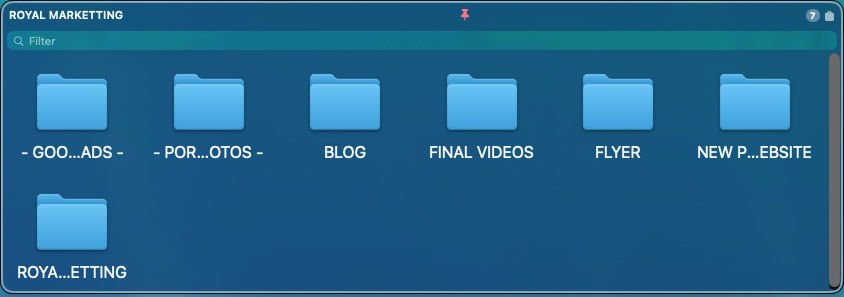
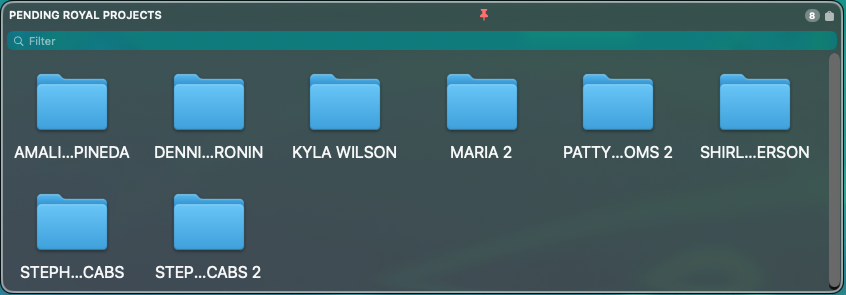
Hides itself. Appears when you need it.


1
Pin folders to any edge
Left, right, or top of every screen. Give each tab a color and a name.
2
It slips out of the way
Tabs hide to a 3px sliver so your desktop stays clean and uncluttered.
3
Reach over — it's there
Move your cursor to the edge and the drawer glides open. Drop, grab, done.
The magic move · Windows 11
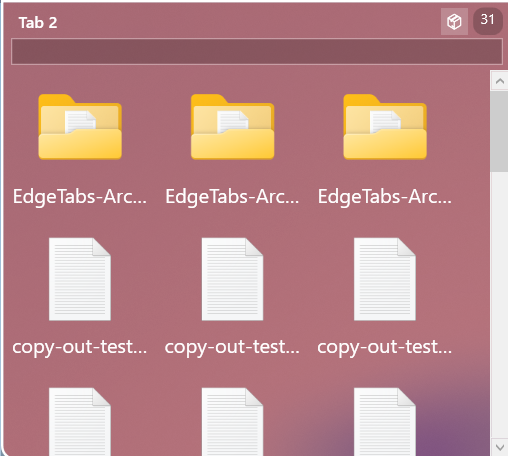
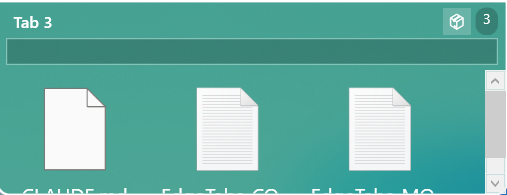
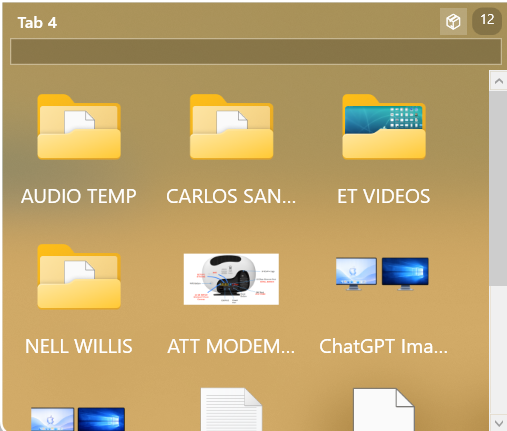
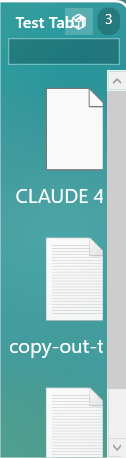
The same move, native on Windows.
1
Pin folders to any edge
Left, right, or top of every screen. Give each tab a color and a name.
2
It slips out of the way
Tabs hide to a 3px sliver so your desktop stays clean and uncluttered.
3
Reach over — it's there
Move your cursor to the edge and the drawer glides open. Drop, grab, done.
See it in action
Watch the full demo
EdgeTabs — Intro Video
videos/edgetabs-intro.mp4
0:00 / 0:00
Native on both platforms
Liquid Glass on macOS, Mica & Acrylic on Windows 11. It looks like it belongs — because it does.
⊞
Windows
10 & 11 · Mica / Acrylic
Coming soon
Pricing
Simple, transparent pricing
Start free for 7 days. No credit card required. Cancel anytime.
Annual
$27/year
Billed yearly · 7-day free trial included
✓Works on macOS & Windows
✓Unlimited tabs on every edge
✓Auto-hide, peek & pin
✓Search, preview & multi-monitor
✓Free updates for one year
✓7-day free trial
Start Free Trial
Best value
Lifetime
$47one-time
Pay once — yours forever · 7-day free trial
✓Everything in Annual
✓One-time payment, no renewals
✓Lifetime updates — forever
✓macOS & Windows
✓Priority support
✓7-day free trial
Get Lifetime
🎉 7 days free — no credit card needed. Cancel anytime.
Ready to tidy up your desktop?
Download EdgeTabs and put your files one reach away — available on the Mac App Store and the Microsoft Store.
EdgeTabs
EdgeTabs turns any screen edge into auto-hiding file drawers — drag, drop, search and organize without ever opening Finder or File Explorer.
© 2026 Royal Sites. All rights reserved. EdgeTabs is a product of Royal Sites.